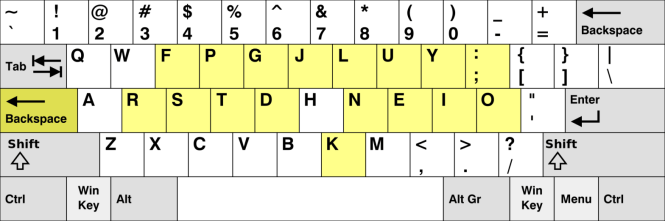
I heard about the Colemak keyboard today from Matt Mullenweg, cofounder of WordPress, via the Tim Ferriss podcast, episode 61. Matt said it was the most efficient keyboard layout, and despite some slightly unconvincing research for speed from efficiency, I have decided to give it a try for reduced long-term ergonomic stress, switching from the QWERTY (that was awkward to type) keyboard. That is, I’m not switching for faster typing speed ultimately. It’s plenty good at about 68 words per minute (wpm). Rather, I’m switching for the decreased reaching I’d have to do with my fingers and hands over the years, at supposedly, about 8-9X less the distance traveled! Additionally, I want to see how it would work out for me rather than just a study since I don’t have an average brain, and also test my middle-aged brain’s ability to learn, unlearn, and relearn.
Tech
Salvaging Videos from Disappearing Online Courses using Windows Based PCs
There are lots of details here, but it’s easy once you go through it once or twice, because all it comes down to are the steps below, which you can just try for short video samples without reading the rest of the post, and see if you feel like you need to read the rest of it:
- Go to the online course as if you were going to view it
- Hold the Windows key while pressing g to get the recording interface
- Do a few setups (or not, but if so, you’ll be familiar with after first try)
- Start recording on the recording interface, press Play on the video
- Stop when done recording or when episode ends and URL changes to next episode. The site keeps on playing, but your video recording will not switch, it seems. You have to leave the video to play to record, unfortunately, not like file downloads, but you can keep it on mute.
Do a few demos first for a few minutes each to get things right. Then go at it for real. Good luck!
An Interactive Analysis Suite for Google COVID-19 Mobility Data
I recently completed an interactive analysis suite for Google’s COVID-19 mobility data, to let me (and others) do all kinds of comparisons one simply cannot get close to with those static Google mobility data reports! Unfortunately, you will have to go to the Tableau public site, the platform on which I built it, to see and use it because I cannot embed webpages with JavaScript in the WordPress platform this blog is built on.
The Tableau “viz” analysis suite lets you do things like compare for any time period for which Google gave daily data, and even between two time periods. You can also compare any number of countries, regions, even US counties, with data filters. You can compare habits over the days of the week, or see what mobility behaviors people changed (or didn’t, on individual days in a range days). There are “fair expectations” set for each metric based on average to slightly above performance shown to be attainable over a 6 week period, to give further context to the numbers. There is a population filter to compare countries in select ranges of populations. Finally, there are ranks so you don’t have to memorize any numbers in comparing performance in different places and/or over different times. Lots of stuff you can do all kinds of analytics with, draw conclusions about (though be careful on assumptions), and such!
The Tableau viz will be updated roughly once a week, when Google puts out the latest data set. It doesn’t seem they’ll be too consistent with when they do that, but only varying between Thursday and Friday so far. In that Tableau viz is:
- A table of content tab (at top of view) outlining what is in each tab;
- A map of the world showing how countries compare for each of the 6 metrics;
- Continental maps showing regional breakdowns in each country on the continent (where there is data);
- Even a US county breakdown map;
- Graphs showing ranks of countries and regions (US counties were too spotty with incomplete data for me to care and give it its own comparison dashboard);
- Graphs showing select regions against others, allowing comparisons between countries and smaller regions like states and provinces, for example;
- Graphs showing results over time;
- Bundled sets of charts in logical order to produce what would be a good briefing report, without text that someone could write for their region/s if they wanted to; and
- Lots more!
Please click on the link if you want to test out the analytical suite I built. It’s free! No ads or anything! 🙂
Thanks!
Customizable Daily Activities Tracker on Google Sheets
I recently created a daily activities tracker on Google Sheets for myself, to track my activities I want to do more or less of, as well as balance some relating to my many interests. Anything I make for myself digitally, I take the time to create a version others can customize to use for themselves, and this is no different.
Customizable Daily Activities Tracker on Google Sheets
With the Google Sheets document in the link, if you’d like to use it, you should make a copy for yourself before using. On the Android platform, that’s under the Share and Export choice in the main menu for managing the document. I’m not sure where it is for iPhones.
I’m not an expert in Google Sheets so I’m not sure if you can use this document via the Google Sheets app, without a Gmail account. Perhaps someone can tell me. However, you can use the document offline so you don’t need data to always use it.
Setup and usage instructions are in the document in the Setup & Instructions tab.
The tracker will ask you when you want to start tracking, so this isn’t a “New Year’s” document that will become useless if you find it too late. The tracker will track how often you do some things (on % of days) and/or how much you do it (average amount or frequency), with the latter pending on how you set up things. It’s all explained in the document.
There is a summary report page you can then screen capture to file, or share.
If you use it, please let me know if you have questions or suggestions. I may not be the greatest tech support, but I hope I’ve designed well enough I don’t have to be. 🙂
Happy New Decade!
Definition: Narrow and General AI (artificial intelligence)
Narrow AI (artificial intelligence)
Artificial intelligence that is generally good at only one task or one task at a time. Compare to General AI that is good at many and multiple tasks at once, like the AI you see in science-fiction that is quite far away from the AI we have today, as awesome as it may seem (or fearsome to some people).
- BBC article in Twitter link below
https://twitter.com/digitalcitizen/status/1188580144497221638